
Reset Boot Configuration
Multiple failed re-programming attempts can lead your device to get stuck in a recovery loop or to have an incorrect boot chain status. Once you have successfully flashed your OS, if you see the UEFI shell instead of the standard login screen, follow the steps below to reset your configuration and restore normal operation.
Prerequisites
- A keyboard and monitor connected to your AIR-T device.
- Access to the device during the initial power-on sequence.
Step-by-Step Instructions
-
Access the Setup Menu: Power on the unit and immediately tap the ESC key repeatedly until the BIOS-style Setup Menu appears
-
Reset OS Chain Status: The "Chain" refers to the boot slots. If a slot is marked as un-bootable, the system will skip it. To adjust the low-level hardware settings, navigate through the following menus:
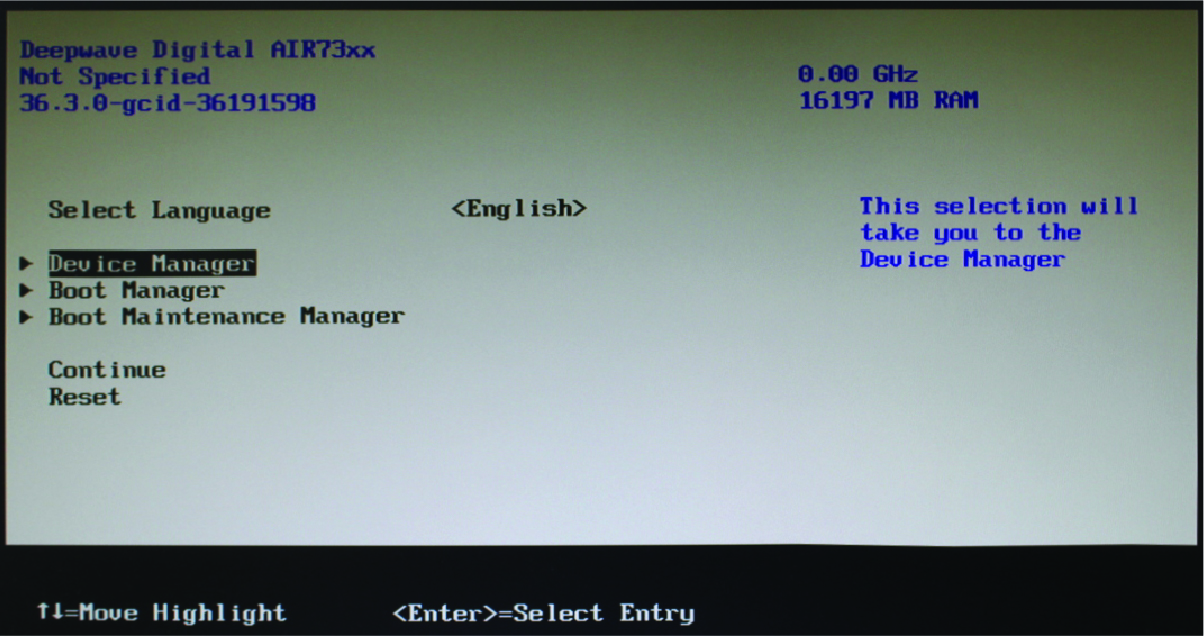
Select Device Manager from the main Setup Menu.
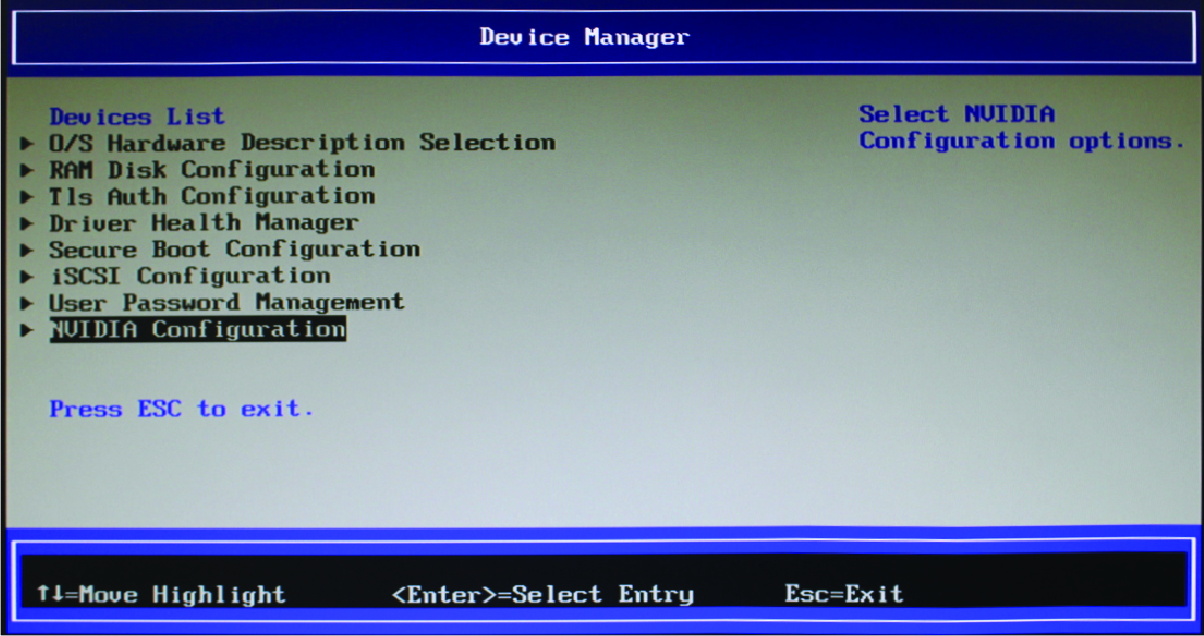
Select NVIDIA Configuration.
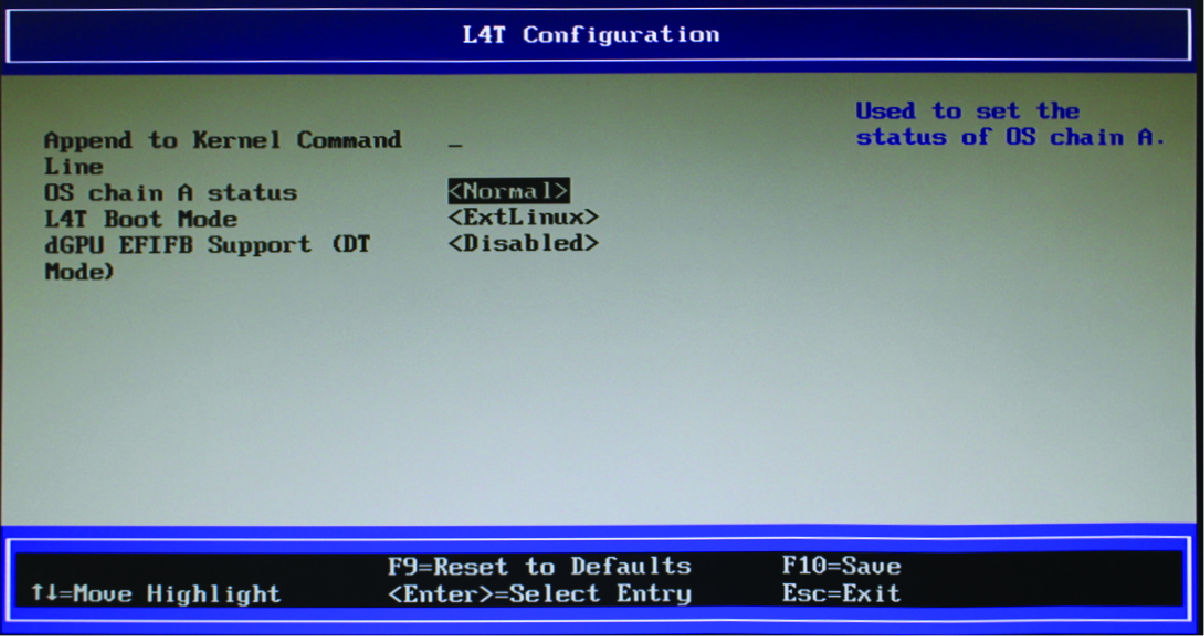
Select L4T Configuration.
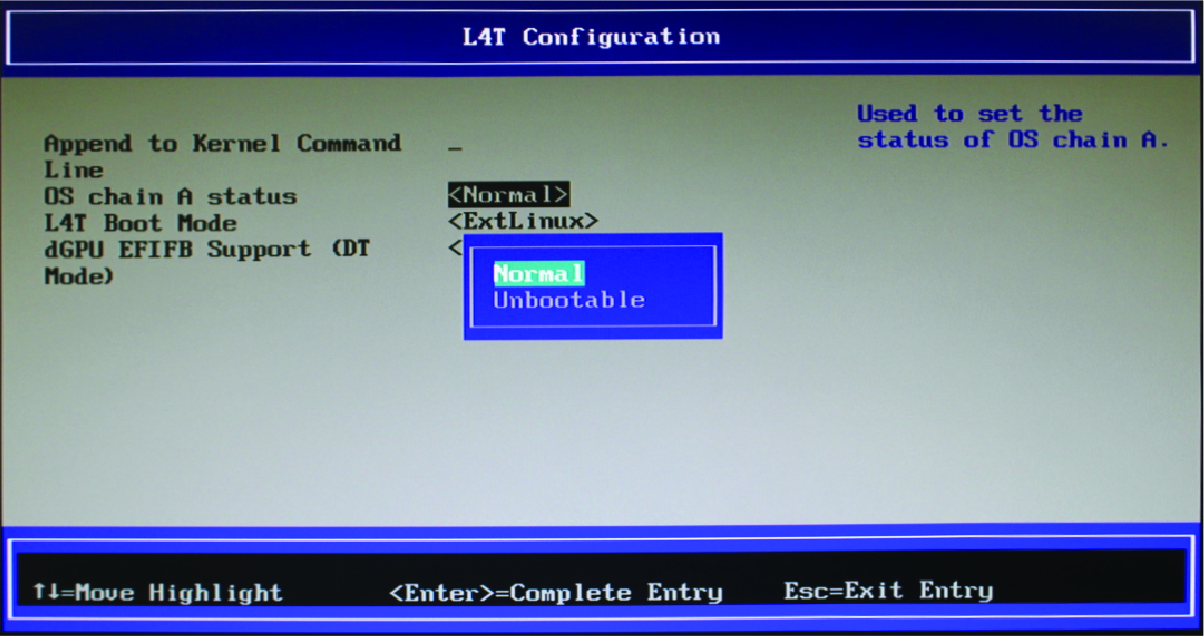
Set the OS Chain A status set it to Normal.
-
Disable Recovery Boot: If the device is consistently trying to enter recovery mode instead of the OS, you must manually disable this flag. To do this, return to the NVIDIA Configuration menu, select Boot Configuration.
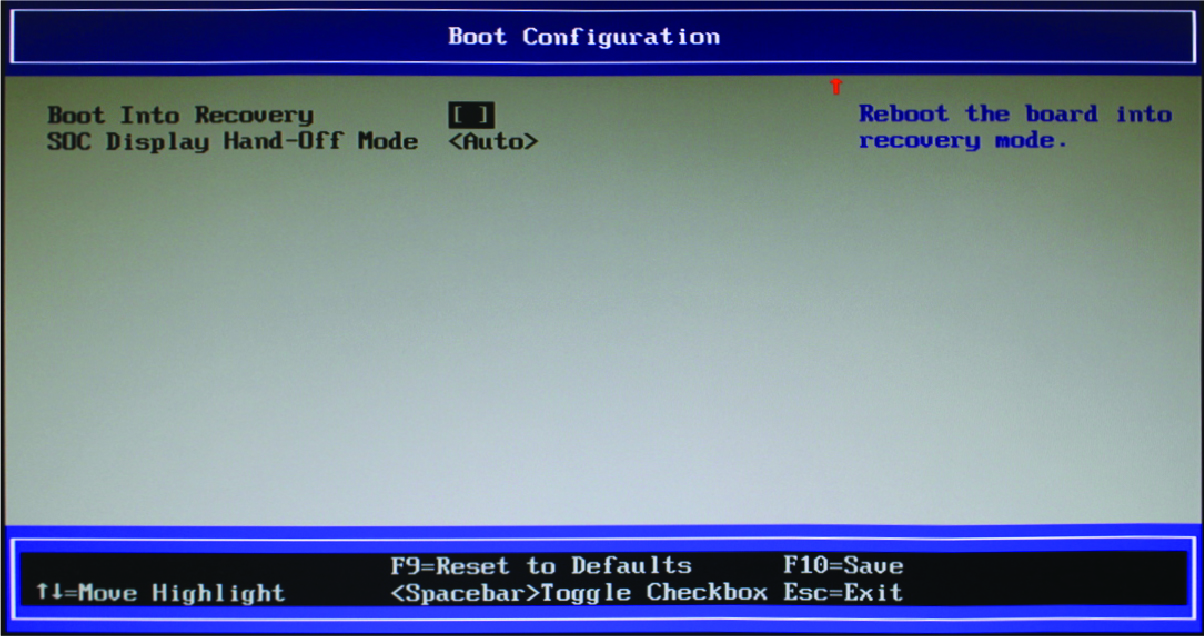
Locate Boot Into Recovery and set it to Disabled.
-
Save and Exit: Once these changes are made, you may save the settings as follows:
- Press F10 to save your settings.
- Press ESC or navigate to the "Exit" tab to reboot the device.
- Your device should now attempt to boot normally into AirStack.